All in one Image Converter Pro
All in one free Windows app for every image converter as you need
Screenshots
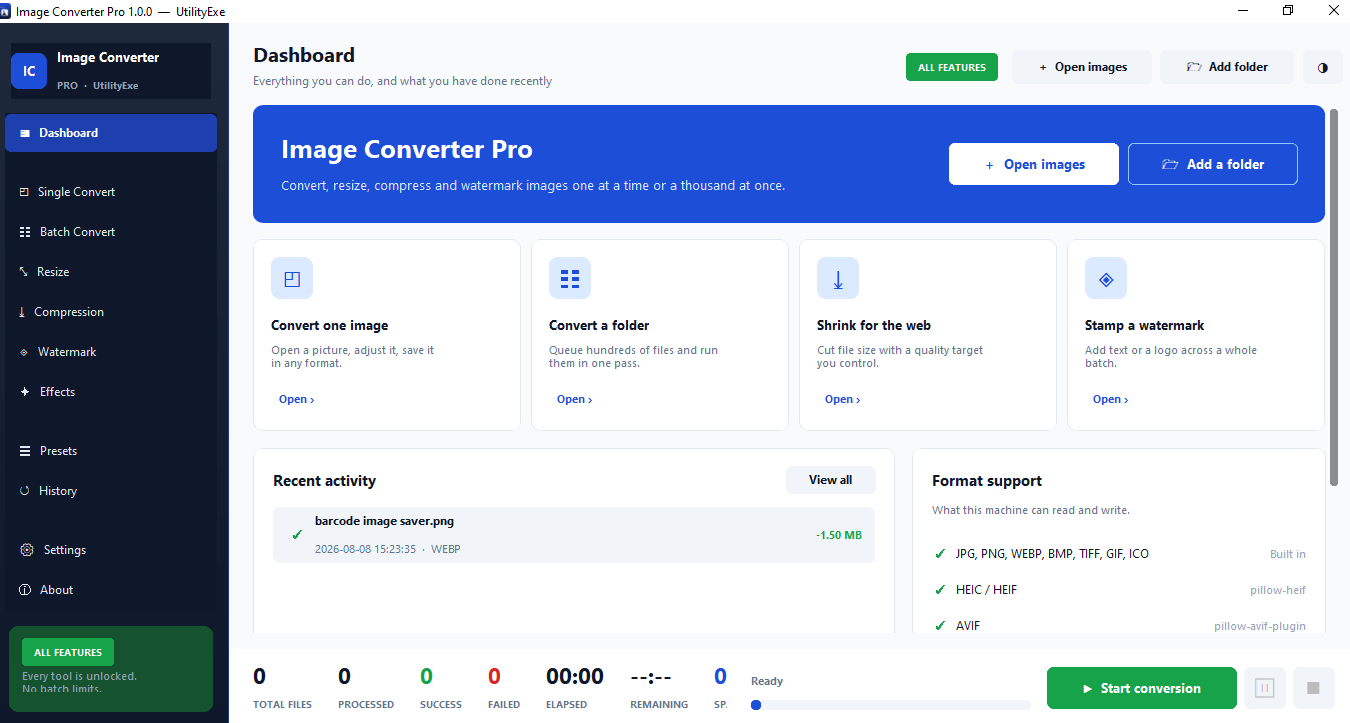
What it does
Thirteen Input Formats
Opens JPG, JPEG, PNG, WEBP, BMP, TIF, TIFF, GIF, ICO, HEIC, HEIF, AVIF and JXL, including iPhone HEIC photos that most Windows software cannot read.
Nine Output Formats
Saves to JPG, PNG, WEBP, AVIF, HEIC, TIFF, BMP, ICO and PDF, with multi-size icon writing and multi-page PDF from a batch.
Unlimited Batch Conversion
Queue any number of files or entire folders with optional subfolder inclusion; mixed input formats in one queue are handled without configuration.
Smart Crop
Builds a gradient-energy map to find the most detailed region of the frame and crops around it, so faces and text usually survive a crop that would otherwise cut them.
Six Resize Modes
Keep Aspect Ratio, Fit, Fill, Stretch, Crop Center and Smart Crop, set in pixels or percentage, with a live line showing exact output dimensions before conversion.
Quality Control With Live Size Estimate
Compression from 10 to 100 with Small, Balanced and Best shortcuts, and an estimated output file size that updates as you drag.
Text And Image Watermarks
Twelve fonts, any size, colour, rotation and 0–100% opacity, or a PNG logo scaled as a percentage, in six positions including full Tile.
Resolution-Independent Watermark Sizing
Watermark scale is measured against a 1000px reference, so one setting produces a visually identical mark on a thumbnail and on a print-resolution file.
Five Metadata Modes
Keep everything, remove all, remove EXIF, remove camera info, or remove GPS only — the last being what most people want before posting photos publicly.
Ten Visual Effects
Grayscale, Black and White, Sepia, Vintage, Cool Tone, Warm Tone, Invert, Posterize and Auto Contrast, layered under five adjustment sliders.
Five Adjustment Sliders
Brightness, contrast, saturation, sharpness and blur, applied after the tone preset, each resettable with a double-click.
Live Preview With Before/After
Zoom from 5% to 800% with Fit and 1:1, Ctrl-wheel zoom, drag to pan, and a toggle comparing the result against the original in place.
Thirteen Built-In Presets
Seven general presets for web, email, print, archive, thumbnails and icons, plus six social media sizes for Instagram, Facebook, LinkedIn, YouTube and X.
Custom Preset Export
Save the current format, size, quality, effects and watermark as a named preset, then export and import as files to move setups between machines.
Batch Rename
Compose output names from prefix, suffix, auto-number with digit padding, date and time stamps, with a live preview of the first few names before committing.
Multi-Core Processing
Runs conversions in parallel with a configurable worker count; the app reports available logical cores, and workers never block the interface.
Failure-Tolerant Queue
A failed file never halts the run — the remainder continues and the specific reason appears in that row's Result column.
Space Saved Reporting
The progress bar reports the real byte difference between input and output alongside total, processed, success, failed, elapsed and remaining.
Conversion History With CSV Export
Logs 800 conversions with file name, date, source format, output format and size before and after, exportable to a spreadsheet.
Source Files Never Modified
Output goes to a Converted subfolder, a renamed sibling file, or a custom folder; the app never overwrites the original.
Nine Keyboard Shortcuts
Open, add folder, save as, start batch, stop, zoom in and out, fit to screen, original size and full screen, all mapped to standard Windows conventions.
Light And Dark Themes
Light, Dark or System with six accent colours, applied instantly without restarting.
Fully Offline And Portable
A single EXE with no installer, no account, no licence key and no network access — images never leave the computer.
What Image Converter Pro does
Image Converter Pro is a single-file Windows utility that handles the whole image-preparation job in one pass: format conversion, resizing, compression, rotation, visual effects, watermarking and metadata cleanup. You queue files or entire folders, set the output once, and the app processes everything without ever modifying your originals.
It opens .jpg, .jpeg, .png, .webp, .bmp, .tif, .tiff, .gif, .ico, .heic, .heif, .avif and .jxl — 13 formats. HEIC support is the one that matters most in practice, because that is what an iPhone produces and what most Windows software still refuses to open.
It saves to 9 formats: JPG, PNG, WEBP, AVIF, HEIC, TIFF, BMP, ICO and PDF. ICO writes a multi-size Windows icon in a single file. PDF turns a batch of images into a multi-page document.
Why it works this way
Most people converting an image are actually doing three or four jobs at once: change the format, shrink the dimensions, drop the quality to hit an upload limit, then strip the GPS tag before posting it publicly. Online converters make you do those one at a time, upload every file to someone else's server, and cap the batch at twenty files unless you pay.
This app does all of it locally in one queue. Nothing leaves the PC. There is no paid tier, no licence key and no limit on batch size.
The processing pipeline
Every image goes through the same fixed nine-step order:
Background removal
Upscale
Resize
Rotate / flip
Tone preset
Adjustments
Watermark
Metadata
Save
The order is deliberate and explains results that would otherwise look strange. The watermark is applied after resizing, so it stays crisp instead of being scaled down with the picture — and because watermark size is measured against a 1000px reference, the same setting looks identical on a 500px thumbnail and a 6000px print master. Adjustment sliders run after the tone preset, so raising brightness on top of Sepia lightens the sepia result rather than the original colours.
The live preview runs the same pipeline but skips steps 1 and 2, which are the slow ones. The saved file always gets the full treatment.
Measured specifications
- 13 input formats, 9 output formats
- WEBP output is roughly 30% smaller than JPG at the same quality setting; AVIF is smaller again, at the cost of slower encoding
- Quality range 10–100, with Small / Balanced / Best shortcuts and a live estimated output size that updates as you drag
- Preview zoom from 5% to 800%, plus Fit and 1:1, with Ctrl+wheel zoom and click-drag pan
- 6 resize modes — Keep Aspect Ratio, Fit, Fill, Stretch, Crop Center, Smart Crop
- 5 metadata modes — Keep, Remove All, Remove EXIF, Remove GPS Only, Remove Camera Info
- 10 visual effects plus 5 adjustment sliders (brightness, contrast, saturation, sharpness, blur)
- 12 watermark fonts, 6 positions including Tile, with 0–100% opacity and any rotation angle
- 13 built-in presets — 7 general plus 6 social media sizes
- 800 history entries, newest first, exportable to CSV
- No cap on queue size
#Smart Crop#
Smart Crop builds a gradient-energy map of the frame and slides a window across it to locate the most detailed region, then crops around that instead of the geometric centre. In practice faces and text usually survive a crop that a centre-crop would cut through. If the analysis fails for any reason it falls back to a centre crop rather than erroring out. All six social media presets use it.
###Batch behaviour
Queue files, folders, or folders with subfolders included. Mixed input formats in one queue are fine. Status moves Waiting → Processing → Completed or Failed, and a failure never stops the run — the remaining files continue and the reason appears in the Result column.
Output goes to a Converted subfolder beside each source, to the same folder with a clash-avoiding rename, or to one custom folder. Batch rename builds names from prefix, suffix, auto-number with digit padding, date and time stamps, with a live preview of the first few names before you commit.
The progress bar along the bottom reports Total, Processed, Success, Failed, Elapsed, Remaining and Space saved — the real byte difference between input and output, so a compression run's actual result is visible rather than assumed.
Multi-core processing runs several conversions in parallel with a configurable worker count. The app reports how many logical cores the machine has so the number can be set sensibly. Workers never touch the interface, so the window stays responsive throughout.
What it doesn't do
Being direct about the limits, because they are the difference between a tool that works and a tool that disappoints:
- #The AI Upscaler is not a neural network.# It is high-quality Lanczos resampling with unsharp masking at 2x, 4x and 8x. It cannot invent detail that was never in the source. A genuinely low-resolution photo comes out larger and smoother, not sharper in any meaningful sense.
- #Background Remover needs the optional# rembg package (~200 MB). It is not bundled, because bundling it would roughly triple the download size for a feature most users never touch. Without it the app tells you plainly how to add it.
- #Animated GIFs convert the first frame only.# Animation is not preserved. If you need animated output, this is the wrong tool.
- #JPEG XL is frequently unavailable on Windows.# Its packages are unreliable and support is thin across the board — Chrome dropped it. Format availability is decided when the EXE is built, not when it runs, so installing codecs on your own PC will not change what the app offers. When a format is unavailable the Dashboard and About screens say so and the app hides it. It never crashes and never half-writes a file.
- #Smart Crop finds the busiest region, not faces specifically.# It is right most of the time and wrong occasionally. Check the preview on images that matter.
- English only in version 1.0.
- #JPG and BMP have no transparency.# Alpha is flattened onto white when saving to JPG. That is a format limitation, not an app one.