Extract the pages you need from any PDF, entirely offline
Portable Open source
14 downloads
34.6 MB
Edit PDF title, author, keywords and XMP — offline, in batch
Updates the Document Info dictionary and XMP metadata in the same save, so Acrobat and Windows Explorer show identical values
Reads all eight standard Info keys plus any non-standard key left behind by a previous program
Shows the raw XMP packet — Dublin Core, PDF and XMP namespaces — alongside the editable fields
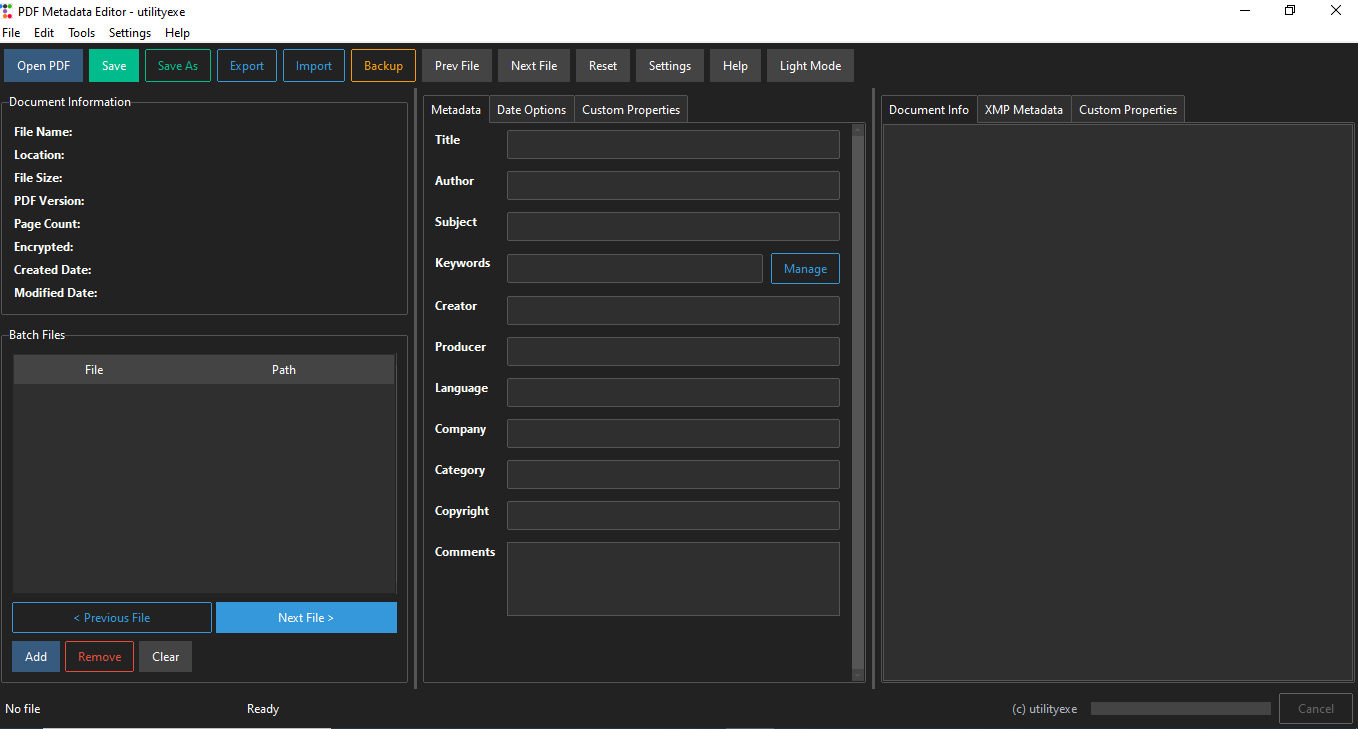
Title, Author, Subject, Keywords, Creator, Producer, Language, Company, Category, Copyright and Comments
Add any number of name/value pairs; they are written into the PDF and read back on the next open
The right panel updates as you type, showing exactly what will be written to the file
Choose keep-original, current date, or a specific date from the built-in calendar — separately for Created and Modified
Set metadata once and apply it to every PDF in the list, with live progress in the status bar
Stops a batch run between files rather than mid-write, so no file is left half-saved
Lists every success and every failure with its reason — locked file, encryption, permission error
Export metadata from many PDFs to CSV, Excel (.xlsx) or JSON
Edit hundreds of files in a spreadsheet and push the changes back, matched by full path or by filename
Save presets like Invoice, Report or Archive and reload them any time; stored as plain JSON for easy backup and sharing
Copy the metadata from one PDF and paste it into another, across as many files as you like
Add and delete keywords individually, sort alphabetically, strip duplicates, always writing clean comma-separated output
Rename files using patterns such as {Title}-{Author}.pdf, with thirteen supported placeholders
Search across many PDFs by Author, Title, Keyword, Company or Category and jump straight to a result
Warns about empty Title or Author, invalid dates, duplicate keywords and invalid characters before writing
Copies the file to a backups folder before every save, restorable in one click
One click returns the file to exactly what it had when you opened it
Twenty levels of history on every field
Remove all metadata, or just the Author, Keywords or Comments
The last ten files, one click away, with a configurable limit
Drop a PDF anywhere on the window to open it
Every long operation runs off the UI thread, so the window never freezes or shows Not Responding
Both fully styled, with every control readable in either mode
Document info, editable fields and live preview side by side, with draggable dividers
Clear messages for password-protected, corrupted, read-only and permission-denied files instead of crashes
No network connection is ever opened — no update check, no analytics, no licence server
Extract and run; nothing is installed, nothing is written to the registry
Open a folder of PDFs and check the Author column in Windows Explorer. Some will
say your name. Some will say "Microsoft Word". Some will say the name of whoever
sent you the file three years ago. A few will be blank.
This happens because a PDF stores its metadata in two separate places: the old
Document Info dictionary, and the newer XMP packet. Most tools write one and
leave the other alone. Acrobat prefers XMP. Windows Explorer reads the Info
dictionary. So you edit the title, it looks correct in one program, and the old
value keeps showing up in the other.
PDF Metadata Editor writes both layers in the same save. That is the whole point
of the tool.
It reads every field already in the file — the eight standard Info keys plus any
non-standard key a previous program left behind — and shows the raw XMP alongside
it, so you can see exactly what is stored rather than guessing.
Eleven fields are editable: Title, Author, Subject, Keywords, Creator, Producer,
Language, Company, Category, Copyright and Comments. On top of that you can add
unlimited custom properties as name/value pairs. They are written into the PDF
and read back the next time you open it, which means they survive being emailed,
copied, or opened in a different program.
Dates get their own treatment. For both Created and Modified you choose: keep
whatever is in the file, stamp the current date and time, or pick a specific date
from the built-in calendar. Most tools silently rewrite the modification date on
every save. This one only does it if you ask.
Setting metadata on one PDF is a five-second job. Setting it on four hundred is
the reason this app exists.
Add files to the batch list, set the metadata once, and apply it to everything.
The status bar shows live progress and the Cancel button stops the run cleanly
between files rather than mid-write. When it finishes you get a summary that
lists every success and every failure with its reason — a locked file, a
password-protected file, a permission error. Nothing fails silently.
For anything more complex, export the metadata of every file to CSV, Excel or
JSON, edit it in a spreadsheet with formulas and find-and-replace, then import it
back. Rows are matched to files by full path or by filename, so a spreadsheet
someone else built still works.
Templates cover the repetitive cases. Save a preset once — one for invoices, one
for client reports, one for archived scans — and load it whenever you need it.
They are stored as plain JSON in a templates folder, so you can back them up or
send them to a colleague.
There is also a metadata clone: copy from one PDF, paste into another. Useful
when one file in a set is already correct and you want the rest to match.
Every save writes a backup first, restorable in one click. Undo and Redo hold
twenty steps. "Restore Original Metadata" puts the file back to exactly what it
had when you opened it, even after a dozen edits.
Before saving, a validation pass warns about empty Title or Author fields,
invalid dates, duplicate keywords, and characters that will not survive being
written to a PDF. You can save anyway — the warnings are there to catch mistakes,
not to block you.
Every long operation — opening, saving, batch runs, imports, exports, searches —
runs on a background thread. The window does not freeze and Windows never shows
"Not Responding", even when a batch is halfway through a few hundred files.
Being honest about scope, because the wrong tool wastes your afternoon:
clearly, but you need to remove the password with another tool first.
compressing, rotating or watermarking. Metadata only.
and editing metadata on a signed PDF invalidates the existing signature. That
is how PDF signatures work, not a bug in the app.
a dedicated preflight tool.
Other utilities people use alongside PDF Metadata Editor.
Extract the pages you need from any PDF, entirely offline
Add text or image watermarks to any PDF — completely offline
