Add text or image watermarks to any PDF — completely offline
Portable Open source
7 downloads
36.2 MB
Extract the pages you need from any PDF, entirely offline
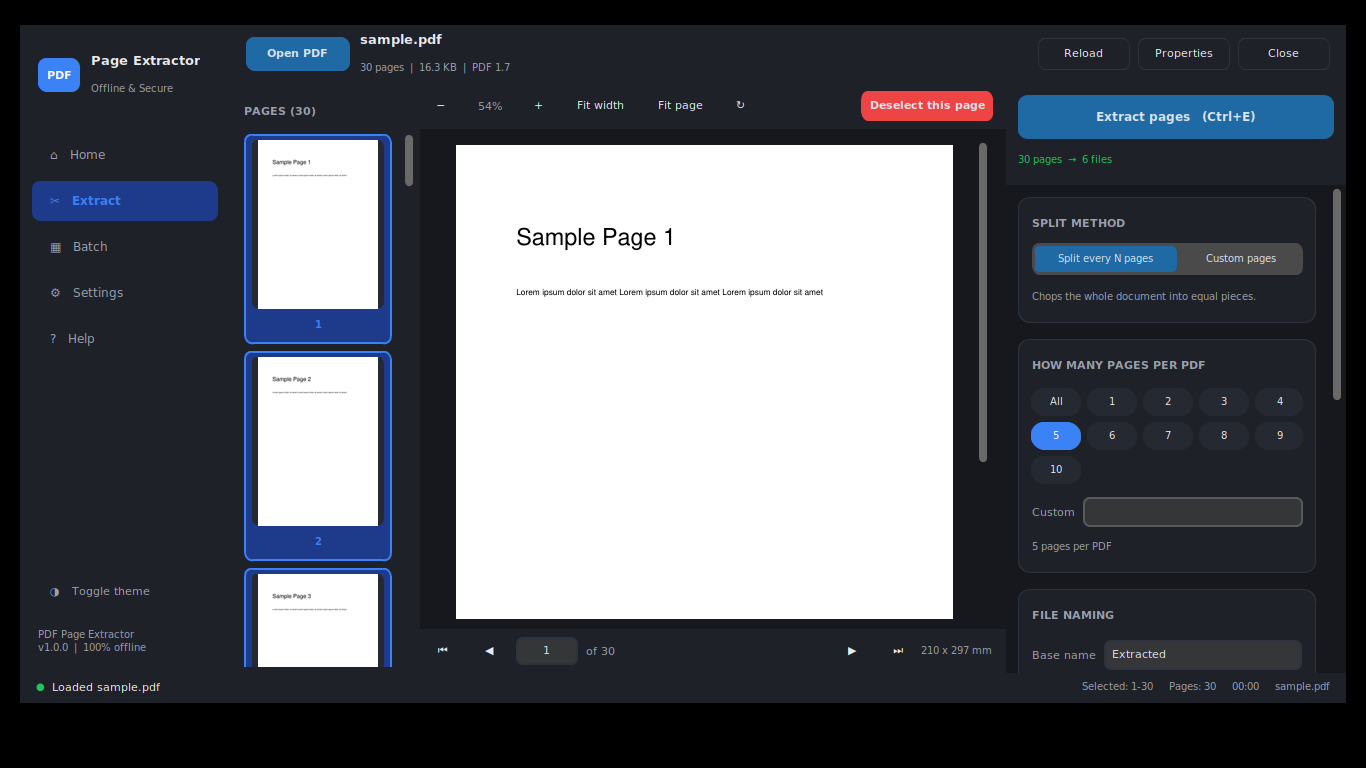
Chop a document into equal pieces. Presets for 1 through 10, or any custom value up to 10,000. A 30-page file at 5 pages each gives you 6 files.
Pull out exactly the pages you list. Type 1,5-10,22-30 and get one combined PDF, or one file per range with a single checkbox.
Spaces are ignored, and the characters -, .. and : plus the word "to" all mean range. Bad input gets a quiet hint, not an error dialog.
Write odd, even, all, first, last, first 5, last 5, 10-last, -8, 12-, every 3, or "every 2nd page" in plain language.
Out-of-range numbers are clamped and flagged, duplicates collapse, and a reversed range like 20-5 is read the sensible way round.
All, None, Invert, Odd, Even, Every 2, Every 3, Every 5, First, Last, Current and + Current, without typing anything.
Type an expression and the thumbnails light up. Click thumbnails and the expression rewrites itself to match.
Click a thumbnail for one page, Ctrl-click to add or remove, Shift-click for a range, double-click to jump the large preview there.
Pages are copied rather than re-rendered. There is no quality setting because there is nothing to trade away.
Selectable text remains selectable, vectors stay vector, and images keep their exact bytes.
The outline is rebuilt against the new page numbers, dead entries removed and the tree re-levelled, so the table of contents still works.
Title, author, subject, keywords, creator, producer and both timestamps carry across to every output file.
Drop unlimited files or entire folders, collected recursively, and apply one rule to all of them.
Each document is parsed against its own page count, so "last" means the last page of that file rather than a fixed number that misfires on shorter documents.
Run 1, 2, 4, 6 or 8 workers depending on how much of the machine you want to give it.
Stop a batch at any point. Cancelling never leaves a half-written file behind.
Every item in the queue shows Queued, Running, Completed, Failed, Cancelled, Skipped or Needs password.
Password prompt with show/hide and a five-attempt limit, in both single and batch mode.
Remember for this session holds a password in memory and never writes it to disk, settings or logs.
In a batch run, protected files are collected and asked about at the end rather than silently failing mid-run.
Rendered in the background on demand, so a 5000-page file opens instantly instead of after a minute of grinding.
With a live percentage readout, plus fit-width and fit-page.
Spin the zoom control and stale frames are discarded rather than queued up and painted late.
Rotate the preview to read a landscape page without altering the file.
Dimensions shown in millimetres alongside the page's own rotation value.
Base name, prefix, suffix, auto-numbering and configurable padding width.
Use {name}, {n}, {page}, {start}, {end}, {pages}, {count}, {date} and {time} inside the base name.
See the first three real output names and a count of the rest before you commit to anything.
Illegal Windows characters and reserved names like CON, PRN and NUL are handled automatically.
Auto-rename to "(1)", overwrite, or skip, chosen once and remembered.
Apply 0, 90, 180 or 270 degrees to the output.
Detected by ink coverage rather than file size, so a large but empty scan is still caught.
Combine everything a run produces into a single PDF as an optional final step.
Skips deflate and deep garbage collection for speed. Turn it off when file size matters more.
Export a record of any run as TXT, CSV or JSON with pages extracted, file count, time taken, location and status.
Drop a single file to open it, several to fill the batch queue, or a folder to collect every PDF inside it recursively.
A list on the Home screen with file sizes and a Clear action.
Pass a file path on the command line, which is what makes the Windows Open with association work.
Re-read the current file while keeping your page selection, for when the source changed underneath you.
A short dialog states page count, file size, PDF version and encryption status before you start.
No network calls of any kind, at any point. It works with the cable pulled out.
No registration, no analytics, no tracking. Nothing is uploaded, so nothing needs deleting afterwards.
Runs in air-gapped and restricted environments where upload-based tools are blocked outright.
Switchable at any time, applied to every dialog rather than just the main window.
Sits at the top of the options column with a live "16 pages to 4 files" summary, so it never scrolls out of reach.
A bar with percentage, elapsed time, estimated time remaining, current page and a Cancel that actually works.
A user guide, full syntax reference, shortcut table and troubleshooting section built into the application.
Ctrl+O to open, Ctrl+E to extract, Ctrl+A select all, Ctrl+I invert, Ctrl+T theme, arrows to page, F1 for help.
The window is clamped to fit the display, so nothing lands underneath the taskbar.
Theme, window size, folders, naming preferences, split method, thread count and recent files all survive a restart.
A crash mid-save cannot corrupt your configuration, and Reset all settings restores the defaults.
One unreadable file in a batch of 400 does not stop the other 399.
"The file is open in another program", not a stack trace.
Five files of 1 MB in %APPDATA%, reachable from Help then Open log folder.
A top-level handler writes the traceback to the log instead of vanishing the window.
Background results travel through a queue drained by the main thread, removing an entire family of intermittent crashes.
Verified against 500 MB and 5000-page documents, with no built-in file size limit.
60 engine assertions, 42 interface checks and 20 end-to-end runs.
Selecting 1-500 issues one operation rather than 500, so large ranges stay fast.
Roughly 45 to 65 MB, no installer, no admin rights, no Python. Runs from a USB stick.
Most PDF splitters ask you to upload your document to a server. For an invoice batch, a signed contract or a medical record, that is not a small ask — and for anyone on a corporate network where uploads are blocked outright, it is not even possible.
PDF Page Extractor does the work on your machine. It makes no network calls at any point. There is no account, no registration, no telemetry and no analytics. Nothing is uploaded, so nothing needs deleting afterwards. It runs in air-gapped environments with the network cable pulled out.
Split every N pages chops a whole document into equal pieces. Load a file, pick a number, extract. A 30-page file at 5 pages each gives you 6 files. At 4 pages each you get 7 files, with 2 pages in the last one. Presets cover 1 through 10, and a custom box takes anything up to 10,000.
Custom pages pulls out exactly what you list. Type 1,5-10,22-30 and you get one 16-page PDF. Tick Save each range as a separate PDF and the same expression gives you three separate files — which is how you split a book into chapters in a single pass.
You pick the method first, and only that method's fields appear. Choosing one never leaves the other quietly influencing the result.
Spaces are ignored. The characters -, .., : and the word to all mean "range". Beyond plain numbers you can write odd, even, all, first, last, first 5, last 5, 10-last, -8 for pages 1 to 8, 12- for page 12 onward, every 3, or every 2nd page written out naturally.
Out-of-range numbers are clamped and flagged rather than rejected. Duplicates collapse. A reversed range like 20-5 is read the sensible way round. Invalid input produces a quiet hint under the box, not an error dialog you have to dismiss.
If you would rather click than type, one-click buttons cover All, None, Invert, Odd, Even, Every 2, Every 3, Every 5, First, Last, Current and + Current. The expression box and the thumbnail strip stay in sync in both directions — type 1,5-10 and the thumbnails light up; Ctrl-click a few thumbnails and the expression rewrites itself to match.
There is no quality setting in this application, because there is nothing to trade away. Pages are copied, not redrawn. Original resolution is preserved. Text stays selectable and searchable. Vectors stay vector. Images keep their exact bytes. Fonts and embedded resources carry across. Page rotation is preserved, and so is the document metadata — title, author, subject, keywords, creator, producer, and both timestamps.
Bookmarks get particular care. The outline is remapped to the new page numbers, entries pointing at pages you did not select are removed, and the remaining tree is re-levelled. You do not end up with a table of contents full of dead links.
Drop individual PDFs or entire folders, collected recursively. One rule applies to every file, but each document is parsed against its own page count. That means last resolves to the last page of that file, and Split every N runs to each file's own end — instead of a fixed range that would misfire the moment it hit a shorter document.
Worker threads are configurable at 1, 2, 4, 6 or 8. You can pause, resume and cancel a run, and cancelling never leaves a half-written file behind. Each file shows its own status in the queue: Queued, Running, Completed, Failed, Cancelled, Skipped or Needs password. Password-protected files are collected and re-prompted at the end rather than silently failing in the middle of the run.
A typical use: pull page 1 from 300 scanned invoices and merge the lot into one summary document.
Password-protected PDFs open with a prompt that has show/hide and a five-attempt limit. Remember for this session keeps the password in memory only — it is never written to disk, not in settings, not in logs.
Thumbnails render lazily in the background, so a 5000-page file opens instantly rather than after a minute of grinding. The large preview zooms from 20% to 600% with a live percentage, plus fit-width and fit-page. You can rotate the view without touching the file, and page geometry is shown in millimetres alongside the page's own rotation. Spin the zoom control quickly and stale frames are discarded rather than queued up and painted late.
Set a base name, prefix, suffix, auto-numbering and padding width. Placeholders work inside the base name: {name}, {n}, {page}, {start}, {end}, {pages}, {count}, {date} and {time}. Writing {name}_p{page} produces report_p7.pdf.
A live preview under the naming card shows the first three real file names plus a count of the rest, so you see what you are about to create. Illegal Windows characters and reserved names like CON, PRN and NUL are sanitised automatically.
Pick an output folder, which is remembered between sessions. Choose how duplicates are handled — auto-rename to … (1).pdf, overwrite, or skip. Optionally open the folder when the run finishes. You can rotate the extracted pages by 0, 90, 180 or 270 degrees, remove blank pages (detected by ink coverage, not file size), and merge the results into a single PDF. Fast-save mode skips deflate and deep garbage collection when speed matters more than file size.
Every run can be exported as a report in TXT, CSV or JSON, listing the source file, pages extracted, number of output files, time taken, output location, status and any error.
Errors are treated as values, not crashes. One unreadable file in a batch of 400 does not stop the other 399. Error messages are written for people — "the file is open in another program", not a stack trace. A rotating log file (5 × 1 MB) sits in %APPDATA%\PDFPageExtractor\logs\ and is reachable from Help → Open log folder.
Background workers never touch the interface directly. Every result travels through a queue drained by the main thread, which eliminates an entire family of intermittent crashes that plague Tkinter applications. Settings are written atomically, so a crash mid-save cannot corrupt them.
The build is covered by three automated suites: 60 engine assertions, 42 interface checks and 20 end-to-end runs.
This is version 1.0, and the list above is an exact description rather than a wish list. The following are not implemented:
PDFPageExtractor.exe "report.pdf", which is what makes Windows Open with work), but there is no way to run an extraction unattended from a script or scheduled task.It also does not merge arbitrary PDFs together as a primary function, compress files, edit page content, fill forms or sign documents. It extracts and splits.
Windows 10 or 11. No installer, no admin rights and no Python on the target machine — the runtime is bundled into a single executable of roughly 45–65 MB. Download the zip, extract it anywhere, and double-click. It runs from a USB stick.
Windows SmartScreen may warn on first launch because this build is not yet code-signed. Choose More info → Run anyway. The version resource is embedded and the build is Authenticode-ready, so the warning will disappear once a certificate is in place.
Settings live in %APPDATA%\PDFPageExtractor\settings.json and remember your theme, window size, last folders, naming preferences, split method, duplicate policy, thread count and recent files. A Reset all settings action restores the defaults.
The extraction engine is built on PyMuPDF, which is AGPL-licensed. The application is free to download and use. If you intend to redistribute it commercially in closed-source form, you would need a commercial licence from Artifex Software. This is an engineering note rather than legal advice.
Other utilities people use alongside PDF Page Extractor.
Add text or image watermarks to any PDF — completely offline
Edit PDF title, author, keywords and XMP — offline, in batch