How to Generate Bulk QR Codes from an Excel or CSV File
By Apu Patra · Published 11 Aug 2026 · Updated 11 Aug 2026 · 7 min read
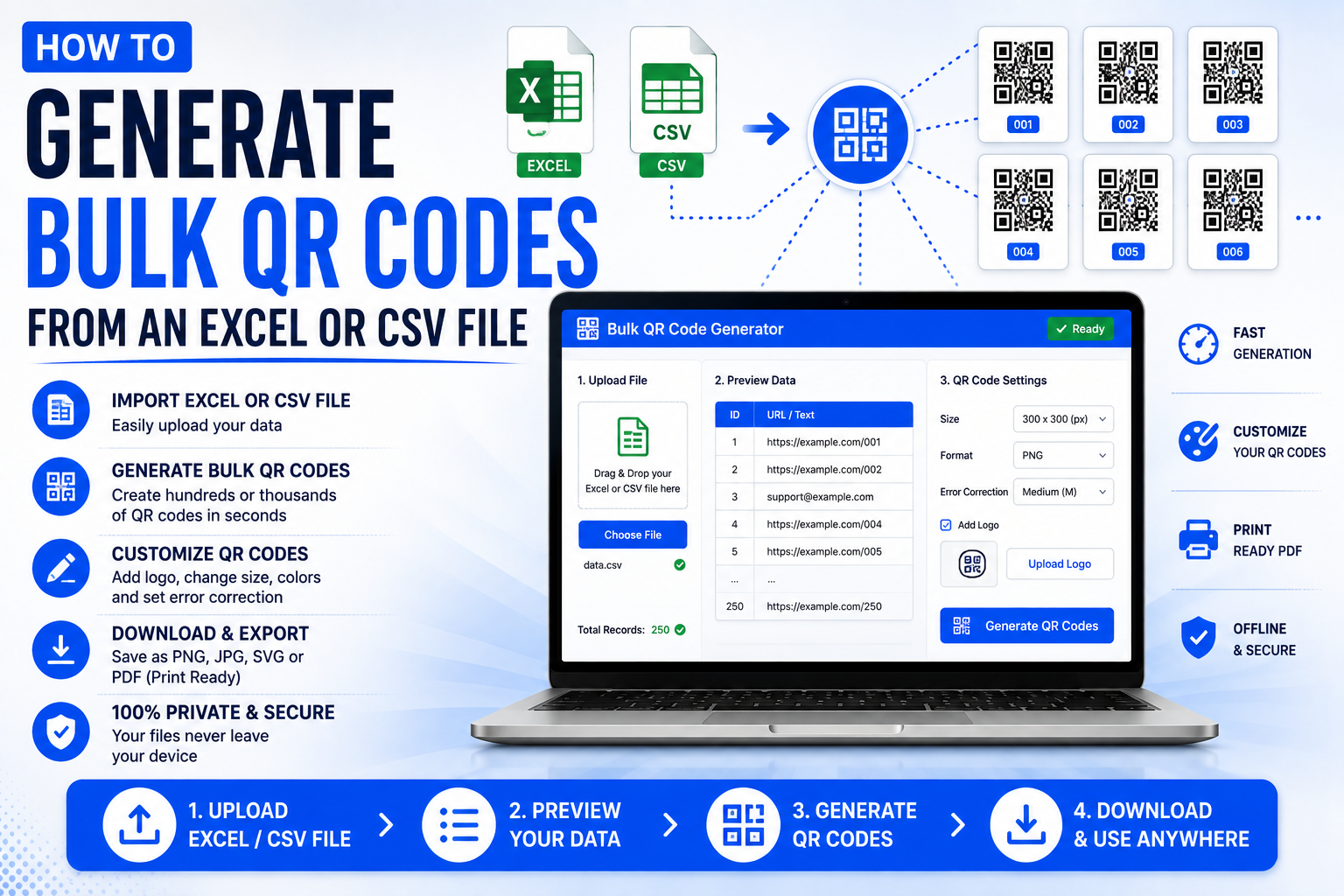
Making a single QR code takes about ten seconds on any of a hundred websites. The problem starts when you have a spreadsheet.
An event with 4,000 attendee badges. A warehouse with 12,000 SKUs. A school printing an ID card for every student. Each code carries different data, each image needs its own file name, and doing them one at a time is not a plan — it is a week.
Bulk generation is where the free web tools stop. Most either cap you at 50 codes, stamp a watermark on the output, or put batch mode behind a subscription. And all of them share one property that matters more than pricing: you have to upload the spreadsheet first.
Why the upload is the real issue
For a column of public URLs, uploading is harmless. But bulk QR spreadsheets are rarely just URLs. They tend to contain employee numbers, phone numbers, customer addresses, payment identifiers, WiFi passwords for a guest network, student dates of birth.
Once that file is on somebody else's server, you have made a decision on behalf of everyone in it. You are relying on a privacy policy you did not read, from a service that costs nothing to run, and you have no way to confirm the file was deleted.
A desktop application removes the question entirely. The file is read from your disk, the codes are drawn in memory, and the images are written to a folder you picked. There is nothing to delete afterwards because nothing left the machine.
Getting the data right before you generate
This is the part people skip, and it is the part that costs you a re-run.
Decide what actually goes into each code. Most bulk generators let you point at one column. That is fine for a list of links. It is not fine for an ID badge, where the scan should return a name, a father's name and a date of birth together.
If your tool supports combining columns, you also have to decide how the result reads when someone scans it. The same three columns can produce either:
Apu Patra | Biswanath Patra | 05-01-1920
or:
Name: Apu Patra | Father Name: Biswanath Patra | Dob: 05-01-1920
The first is compact. The second is self-describing, which matters if a human is reading the scan result rather than a system parsing it. Neither is universally correct — pick based on who is scanning.
Watch your column headings here. If your header is dob, that is what appears in the encoded output unless you can rename the label. Date of Birth reads better on a phone screen than dob.
Decide the file names before the run, not after. A folder of qr_1.png through qr_4000.png is nearly useless, because nothing connects an image back to its row. Name the files from your data instead — a dedicated column, often called qrname, whose values become the file names:
| qrname | Generated file |
|---|---|
| Student001 | Student001.png |
| Student002 | Student002.png |
| Product100 | Product100.png |
Then check that column for duplicates before you start. Two rows with the same name means the second one silently overwrites the first, and you will not notice until someone's badge is wrong. Good tools suffix instead — Student001.png, Student001_1.png — but do not rely on it. Run a duplicate check in Excel first.
Also strip the characters Windows will not accept in a file name: \ / : * ? " < > |. A product code like AB/100 becomes AB_100.png at best, and an error at worst.
Choosing settings you cannot change later
Four settings determine whether the codes work in the real world. Getting them wrong means regenerating everything.
Error correction. QR codes carry redundant data so they still scan when part of the code is damaged, dirty or covered. The standard defines four levels — L, M, Q and H — recovering roughly 7%, 15%, 25% and 30% of the code respectively. The catch is that redundancy consumes capacity: at level H, a code holds substantially less text than the same size code at level L.
The practical rule: use L or M for anything displayed on a screen or printed on clean paper, and Q or H for labels that will be handled, scuffed, curved around a bottle or partly obscured.
If you hit a "content is too long" error, this is usually the lever. Dropping from H to M frees a meaningful amount of room without making the code fragile.
Margin. The white border around a QR code — the quiet zone — is not decoration. Scanners use it to find where the code ends. The specification calls for four modules of clear space; in practice a margin setting of 2 to 4 is safe, and 0 is the single most common reason a code that looks perfect refuses to scan.
Colour. You can generate codes in your brand colours, and they will often work. But scanners read contrast, not hue. A dark code on a light background is reliable; a mid-grey code on a beige background is a gamble that varies by phone camera and lighting. If the codes will be printed and handed to strangers, keep the contrast high and test on a cheap phone, not a flagship.
Format. PNG for screens and general use. JPG only if something downstream demands it — JPEG compression artefacts around the sharp edges of a QR code do it no favours. For anything going to print, use SVG. It is vector, so the same file is sharp on a business card and on a banner, and your print shop will prefer it.
Codes that are more than links
A QR code that contains https://example.com is just text; the phone recognises the pattern and offers to open it. But WiFi, payment and contact codes only work because they follow a specific syntax, and the syntax is unforgiving.
A WiFi code looks like this:
WIFI:T:WPA;S:NetworkName;P:password123;;
Get the structure wrong — a missing semicolon, the terminating double semicolon left off — and the phone shows a string of text instead of offering to join the network. The same applies to mailto:, smsto:, wa.me links and UPI payment strings, each of which has its own required format.
If you are building these by hand in a spreadsheet formula, test one code on an actual phone before generating the other 3,999. A content builder that writes the payload for you removes this class of error completely.
Test before you commit
Three checks, in order, before a large run:
- Generate a single code from your first row and scan it with a real phone. Not a preview, not a desktop decoder — a phone, in the lighting where the codes will be used.
- Confirm the scanned result reads the way you intended, with or without field labels.
- Print one at final size on the actual material. A code that scans on a monitor can fail on matte label stock at 20mm.
Only then start the batch.
Doing it on Windows
QR Code Generator is a free portable Windows app built for exactly this. It reads .xlsx, .xlsm, .csv and .tsv, lets you tick any combination of columns, reorder them, choose a separator, and switch field labels on or off with a live preview built from your first row. File names come from the column you nominate, duplicates are suffixed rather than overwritten, illegal characters are replaced, and rows with empty data are skipped and logged instead of failing silently.
Size runs from 64 to 4096 pixels, error correction and margin are adjustable, colours are yours, and output is PNG, JPG or true vector SVG. Large runs are multithreaded with a progress window showing elapsed time, remaining time and completed and failed counts, with a cancel button throughout.
It does not read .xls files, does not embed logos, and does not decode existing codes. It also does not upload anything, because it makes no network calls at all.
No installer, no admin rights, no account. Extract the zip, run it, and delete the folder when you are done with it.