How to Rename Multiple Files at Once in Windows (3 Methods)
By Apu Patra · Published 3 Aug 2026 · Updated 3 Aug 2026 · 6 min read
The problem with renaming files in Explorer
Select a few hundred photos in File Explorer, press F2, type Holiday, and Windows will do
something that looks helpful and turns out not to be:
```
Holiday.jpg
Holiday (1).jpg
Holiday (2).jpg
...
Holiday (247).jpg
```
Those parentheses break sorting in almost every program that reads the folder afterwards.
Holiday (10).jpg sorts before Holiday (2).jpg because the comparison is alphabetical, not
numeric. Anything expecting a consistent naming pattern — a photo book service, a batch import,
a build script — will choke on it.
Explorer also gives you exactly one operation: replace the whole name and number the rest. It
cannot strip a prefix, change only the extension, replace text in the middle, or leave the
original files untouched.
This guide covers what Windows can do on its own, where those methods stop being enough, and
how to rename in bulk without losing anything.
Method 1: Explorer, for the simplest case
It is genuinely the fastest option when all you need is one name plus a counter.
- Select the files in the order you want them numbered
- Press F2 (or right-click the first file and choose Rename)
- Type the base name and press Enter
Use this when the parentheses do not matter — a folder of holiday photos you are only going to
look at, for example.
Where it fails: no find-and-replace, no zero padding, no way to preview, and no undo beyond
Ctrl+Z immediately afterwards. Close the window and the change is permanent.
Method 2: PowerShell, for one-off patterns
PowerShell is already on your machine and handles the cases Explorer cannot. Open the folder,
type powershell in the address bar, and press Enter.
Replace text in every filename:
```powershell
Get-ChildItem *.jpg | Rename-Item -NewName { $_.Name -replace 'IMG_', 'Holiday_' }
```
Number files with zero padding, so they sort correctly everywhere:
```powershell
$i = 1
Get-ChildItem *.jpg | ForEach-Object {
Rename-Item $_ -NewName ("Holiday_{0:D3}{1}" -f $i++, $_.Extension)
}
```
D3 gives 001, 002, 010. That is the fix for the sorting problem above.
Always dry-run first. Add -WhatIf and PowerShell prints what it would do without touching
anything:
```powershell
Get-ChildItem *.jpg | Rename-Item -NewName { $_.Name -replace 'IMG_', 'Holiday_' } -WhatIf
```
Where it fails: there is no undo. If the pattern was wrong, you now have several hundred
wrongly named files and no record of what they were called before. -WhatIf output scrolls past
in a console window and is easy to skim rather than read. And every new pattern means writing
the expression again from scratch.
Method 3: A dedicated renaming tool
The gap both built-in methods leave is the same one: **you cannot see the full result before
committing, and you cannot get back what you had.**
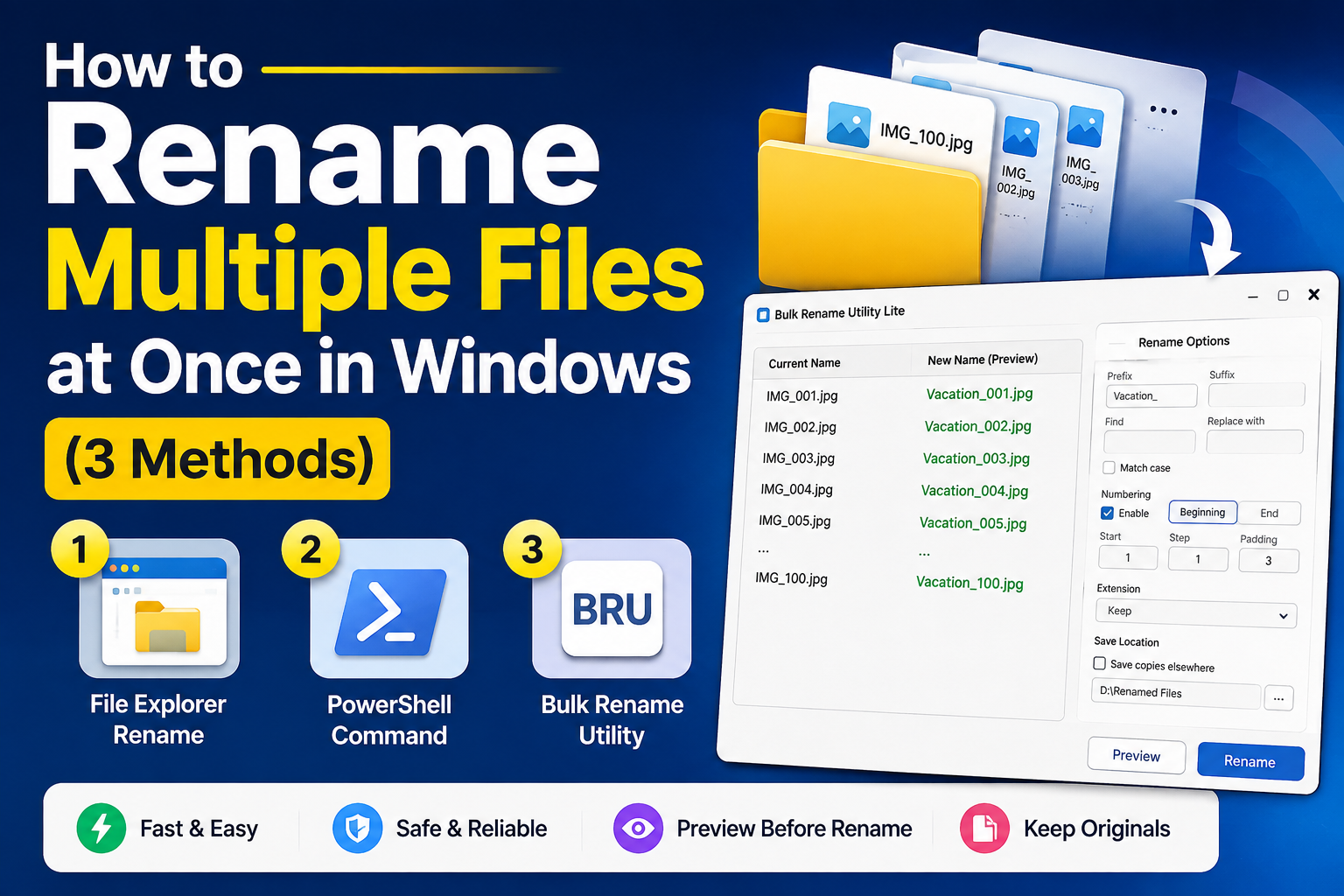
That is the case Bulk Rename Utility exists for. It is a free,
standalone .exe — no installer, no Python, no registry entries — that applies your rules and
shows the old and new names side by side before anything is written.
What it handles that the built-in methods do not:
- Find and replace with optional case matching, anywhere in the filename
- Prefixes and suffixes added without disturbing the rest of the name
- Sequential numbering with the zero padding you choose
- Saving renamed copies while leaving the originals exactly as they were
That last one is the safety net PowerShell does not give you. If the pattern turns out wrong,
the originals are still sitting there.
Comparing the three
| Explorer | PowerShell | Dedicated tool | |
|---|---|---|---|
| Already installed | Yes | Yes | No — one download |
| Preview before renaming | No | -WhatIf only, in a console | Yes, full list |
| Find and replace | No | Yes | Yes |
| Zero-padded numbering | No | Yes, with a script | Yes |
| Keep originals | No | Only if scripted | Yes, built in |
| Learning curve | None | Moderate | Low |
| Good for | One name plus a counter | Repeatable, scriptable jobs | Anything you want to check first |
There is no single winner here. Explorer is faster for trivial jobs. PowerShell is better if the
rename is part of something automated that runs again next week. A tool with a preview earns its
place when the files matter and the pattern is not obvious.
Four habits that prevent the disaster
Bulk renaming goes wrong quietly. These four cost almost nothing and have saved a lot of
weekends.
Copy the folder first. Not a backup somewhere clever — a duplicate folder on the same drive,
deleted an hour later once you are sure. This is the single most effective safeguard.
Test on ten files. Whatever the method, run it on a small subset first and look at the actual
result rather than assuming.
Watch for name collisions. If two different files would end up with the same new name, one
can silently overwrite the other. Renaming report_final.docx and report_FINAL.docx to the
same thing loses one of them.
Mind the extension. A find-and-replace on . or on a string that appears in the extension
can strip it entirely, and Windows will no longer know how to open the file.
When bulk renaming is the wrong answer
Worth saying plainly, because it is easy to reach for the wrong tool:
- If you are organising photos, the date and camera information is already inside the file.
- If the files are in version control, rename through Git so the history follows them.
- If you need this to happen automatically on a schedule, PowerShell plus Task Scheduler is
A photo manager that reads EXIF will sort them better than any filename pattern.
the right answer. A desktop tool with a preview is built for the times a human is watching.
Common questions
Can I undo a bulk rename?
In Explorer, only with Ctrl+Z immediately afterwards. In PowerShell, not at all. The reliable
approach is to keep the originals — either by copying the folder first or by using a tool that
writes renamed copies.
Why do my files sort in the wrong order after renaming?
Because the numbers are not padded. File2 sorts after File10 alphabetically. Use File002
and the problem disappears everywhere, not just in Explorer.
Will renaming a file damage it?
No. The filename is stored separately from the contents. The one exception is removing or
changing the extension, which leaves the data intact but stops Windows knowing which program
opens it.
Can I rename files inside subfolders too?
PowerShell can, with -Recurse on Get-ChildItem. Be careful: it is very easy to catch far more
files than you intended. Preview first.
In short
For a handful of files, Explorer is fine. For a pattern you will repeat, learn the PowerShell
one-liner — it is worth the twenty minutes. For everything in between, where the files matter
and you want to see the result before committing to it, use a tool that shows you the outcome and
keeps the originals.
Whichever you choose, copy the folder first. It takes five seconds and it is the only step on
this page that has never once been regretted.