How to Merge Hundreds of Excel and CSV Files Into One Clean Workbook
By Apu Patra · Published 11 Aug 2026 · Updated 11 Aug 2026 · 7 min read
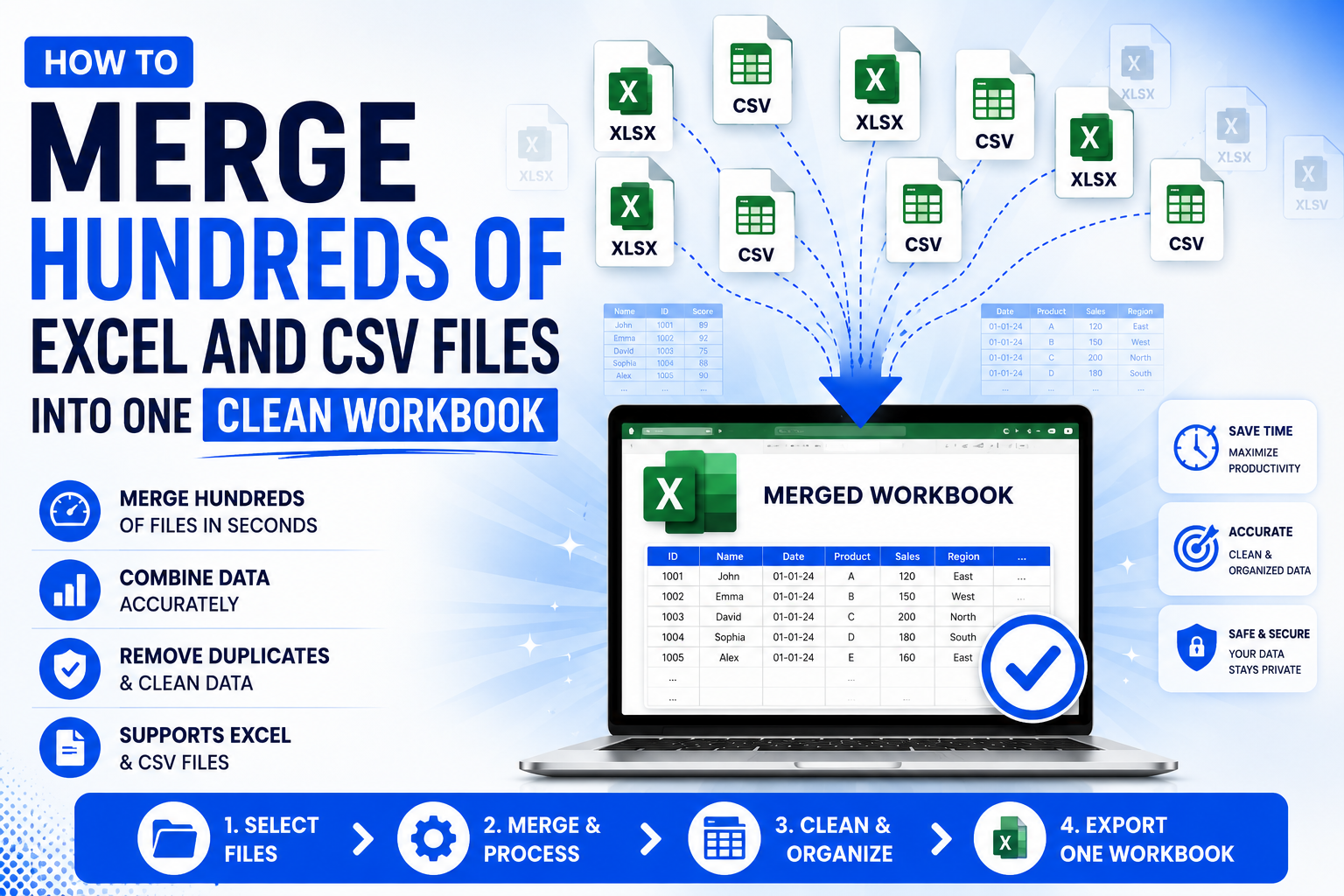
Merging spreadsheets sounds like a five-minute job. Open forty files, copy, paste, done.
It isn't, and the reason is that merging is the easy part. The hard part is everything the merge quietly breaks. One branch spelled the column Customer, another spelled it customer, and a third put the columns in a completely different order. Two of the files overlap, so four hundred records appear twice. Someone typed 1,200 with a comma, so half your revenue column is text and refuses to sum. A stray column called Unnamed: 3 shows up from nowhere.
You end up with a workbook that looks merged. Then you build a pivot table on it and the numbers are wrong, and you spend the rest of the afternoon working out which of the forty files caused it.
This post walks through what actually goes wrong when combining Excel and CSV files, and how to handle each problem properly.
The five things that break a manual merge
1. Header mismatches nobody notices
This is the big one. When column names differ even slightly between files — capitalisation, a double space, "Cust Name" versus "Customer Name" — a naive merge stacks them as separate columns. You now have Customer and customer sitting side by side, each half-full, and every formula that references one of them is silently wrong.
The fix is to compare every file's headers against a reference file before merging, and to realign columns by name rather than by position. That way matched headers stack into one column regardless of what order they appeared in.
2. Duplicate records across files
When the same records appear in two files — a month's data resent, an overlapping export, a branch that submitted twice — deduplication has to happen after the merge, across the combined set. Doing it per-file achieves nothing.
There's a subtlety here too. If you've added a "source file" column, two identical records from different files are no longer identical rows, so a naive whole-row deduplication won't catch them. Any deduplication that runs after source tracking needs to ignore the tracking columns when comparing.
3. Numbers that are secretly text
1,200, ₹500, 45% — Excel treats all of these as text depending on how they were entered or exported. They look fine and they won't add up.
Bulk-converting a whole sheet is worse than leaving it alone, though, because it mangles things like invoice IDs. INV-001 becomes INV-1, or worse, a date. Conversion is only safe when applied per column, and only when every non-empty value in that column parses as a number. If one value doesn't, the column stays as text.
4. Losing track of where rows came from
Once forty files become one sheet, "row 8,412 looks wrong" is unanswerable. You have to open files one at a time until you find it.
A Source_File column solves this permanently, and costs nothing. For workbooks with multiple sheets, a Source_Sheet column does the same at sheet level.
5. The row limit you find out about too late
An Excel worksheet holds 1,048,576 rows. Some tools truncate silently at that point. Forty files at 30,000 rows each is 1.2 million — you will hit it, and you need to be told rather than discover it later.
The answer when you hit the ceiling is separate sheets per file, or CSV output, not truncation.
Doing it in one pass
All five problems are solvable, but only if they're handled together and in the right order: validate on import, align headers, merge, remove duplicates, clean, then write. Get the order wrong — dedupe before alignment, for example — and you get a different wrong answer.
That's the pipeline Merge Excel runs. It's a free, portable Windows application that works entirely offline, which matters when the spreadsheets contain customer records or payroll data you'd rather not paste into a browser-based tool.
The workflow is four steps:
Add the files. Use the file picker, or drop in a whole folder — it recurses through sub-folders, skips Excel's ~$ lock files, and never adds the same path twice. Every file is validated and inspected as it arrives, so corrupt, empty and password-protected workbooks are flagged before the merge starts rather than crashing it halfway through. CSV files get encoding detection across UTF-8 with BOM, CP1252 and Latin-1, plus automatic detection of comma, semicolon, tab and pipe delimiters.
Choose how the output should be shaped. Single sheet stacks every row into one worksheet with the header written once and an optional serial column. Separate sheets gives each file its own worksheet, handling the awkward parts — duplicate sheet names auto-renamed, illegal characters cleaned, Excel's 31-character sheet name limit respected.
Set the rules. Pick a header comparison mode (exact match, ignore case, ignore spaces, or custom mapping rules like Cust Name = Customer Name, one per line). Choose whether duplicates are compared by entire row, one column, or several. Tick the cleanup options you want.
Preview, then merge. Preview runs the entire pipeline in memory and writes nothing at all. It reports total rows, duplicate count, validation errors, the full column list and a 200-row sample of the result. If it looks right, you start the merge from the preview window.
Speed
Merge Excel was tested at 500,000 rows across 40 files: about 16 seconds, 176 MB of memory.
That holds because row counts are read by streaming rather than loading whole workbooks into memory, and large unprotected output is written through XlsxWriter in constant memory. It handles 500+ files without the window freezing — processing runs on a background thread, with a progress bar, a live message showing the current file, and a cancel button that leaves nothing written behind.
The part that saves you next month
Two features matter more than they sound.
The summary report. After each run you get files processed, files failed, rows read, merged rows, duplicates removed, empty rows removed, blank columns removed, sheets written, validation errors, processing time and output location — with tabs listing every validation issue and every failed file with its reason. It exports as Excel or PDF, which is what you attach when someone asks why the merged total doesn't match their own count.
Profiles. If the same merge happens every month, save the settings and file list as a .json profile and load it next time. Files that no longer exist on disk are reported rather than silently dropped. Passwords are deliberately never written into a profile, so you re-enter those before merging.
[INSERT PERSONAL ANECDOTE HERE] — a short first-hand paragraph about a real merge you did: how many files, what went wrong the manual way, what the header mismatch or duplicate situation actually looked like, and how long it took before versus after. Two or three sentences, specific numbers, written in first person.
A word on Excel passwords
Merge Excel can protect the output, and it's worth being precise about what that means, because "Excel password protection" describes three different things that are not equally strong.
Workbook protection blocks adding, deleting, renaming and moving sheets. Worksheet protection blocks editing cells and inserting or deleting rows and columns. A read-only recommendation asks Excel to suggest opening the file read-only.
All three are deterrents against accidental edits, not security controls. Excel's structure and sheet passwords can be removed by anyone who spends five minutes searching how. Treat them as a "don't touch this" sign, not a lock.
The fourth option, a password to open the file, is real encryption — but it isn't part of the file format the underlying library writes, so it requires Microsoft Excel installed on the machine and is driven through COM. Without Excel the merge still completes and the summary explicitly tells you the open password was skipped, rather than pretending it worked. Protection of any kind applies to .xlsx output only; XLS and CSV have no equivalent, and the report says so instead of silently doing nothing.
Where this tool stops
Worth knowing before you download:
- Windows 10 and 11 only. No macOS or Linux build.
- No command line, no scheduling. It's a desktop application you run manually.
- XLS output depends on the unmaintained
xlwtpackage and is capped by the format at 65,535 rows and 256 columns. Use XLSX unless something downstream genuinely requires the old format. - Source files with an open password can't be read. Remove the password in Excel first.
- Drag and drop needs the optional
tkinterdnd2package. Everything else works without it — use the Add files button. - No data transformation beyond cleanup. It won't reshape, pivot, or calculate. It merges and cleans; analysis is your job.
Getting it
Merge Excel is free and portable. Download the ZIP, extract it, run MergeExcel.exe — no installer, no account, no telemetry, no internet connection. Keep the extracted folder together so logs, profiles and output sit beside the executable. The first launch is slightly slower because the single-file build unpacks to a temporary folder; subsequent launches are fast.
If you work with spreadsheets and documents regularly, Image Converter Pro and PDF Page Extractor cover related jobs in the same offline, no-upload way.
Tools mentioned in this article
Bulk Rename Utility
Fast, Simple & Powerful Bulk File Renaming.
Barcode Image Saver
Turn Excel spreadsheets into barcode images in seconds
PDF Page Extractor
Extract the pages you need from any PDF, entirely offline
PDF Watermark Adder
Add text or image watermarks to any PDF — completely offline
PDF Metadata Editor
Edit PDF title, author, keywords and XMP — offline, in batch
Bulk QR Code Generator
Bulk QR codes from Excel and CSV, without uploading your data anywhere
All in one Image Converter Pro
All in one free Windows app for every image converter as you need
Merge Excel
Merge hundreds of Excel and CSV files into one clean workbook — offline and free