Bulk QR codes from Excel and CSV, without uploading your data anywhere
Portable Open source
42 downloads
49.3 MB
Merge hundreds of Excel and CSV files into one clean workbook — offline and free
Compare every file against the first using exact match, ignore case, ignore spaces, or custom mapping rules like "Cust Name = Customer Name".
Matched headers stack properly instead of producing two near-identical columns when files list columns in a different order.
Stack every row into one worksheet, or give each source file its own sheet with auto-renaming and the 31-character limit respected.
Compare entire rows, one column, or several columns, keeping the first or last occurrence.
Handles 1,200, ₹500 and 45%, but only converts when every value in the column parses, so INV-001 stays untouched.
Records which file each row came from, with an optional Source_Sheet column for multi-sheet workbooks. Both names editable.
Runs the entire pipeline in memory and reports rows, duplicates, validation errors and a 200-row sample before anything is saved.
Files processed, rows merged, duplicates removed, validation errors, processing time and more, exported as Excel or PDF.
Save settings and the file list as a .json profile and reload it next month. Passwords are never stored in a profile.
Workbook structure lock, worksheet lock, read-only recommendation and a real open password, each labelled for what it actually does.
Add hundreds of files at once from a folder tree, with Excel's ~$ lock files skipped and duplicates never added twice.
Tries UTF-8 with BOM, CP1252 and Latin-1, and detects comma, semicolon, tab and pipe delimiters automatically.
Corrupt, empty, renamed and password-protected files are caught on import, so a bad file never breaks a running merge.
500,000 rows across 40 files in about 16 seconds using 176 MB of memory, with row counts read without loading whole workbooks.
Runs on a background thread so the window never freezes, and nothing is written to disk unless the merge completes.
A single executable with no installer, no account, no telemetry and no internet connection. Files never leave your PC.
Anyone who collects spreadsheets from multiple branches, months or team members knows the real work is not the merging — it is everything around it. One file spells the column "Customer", another spells it "customer". A third puts the columns in a different order. Two files contain the same 400 records. Half the numbers arrived as text because someone typed "1,200" instead of 1200. Copy-pasting sheet by sheet gets you a workbook that looks merged but is quietly wrong.
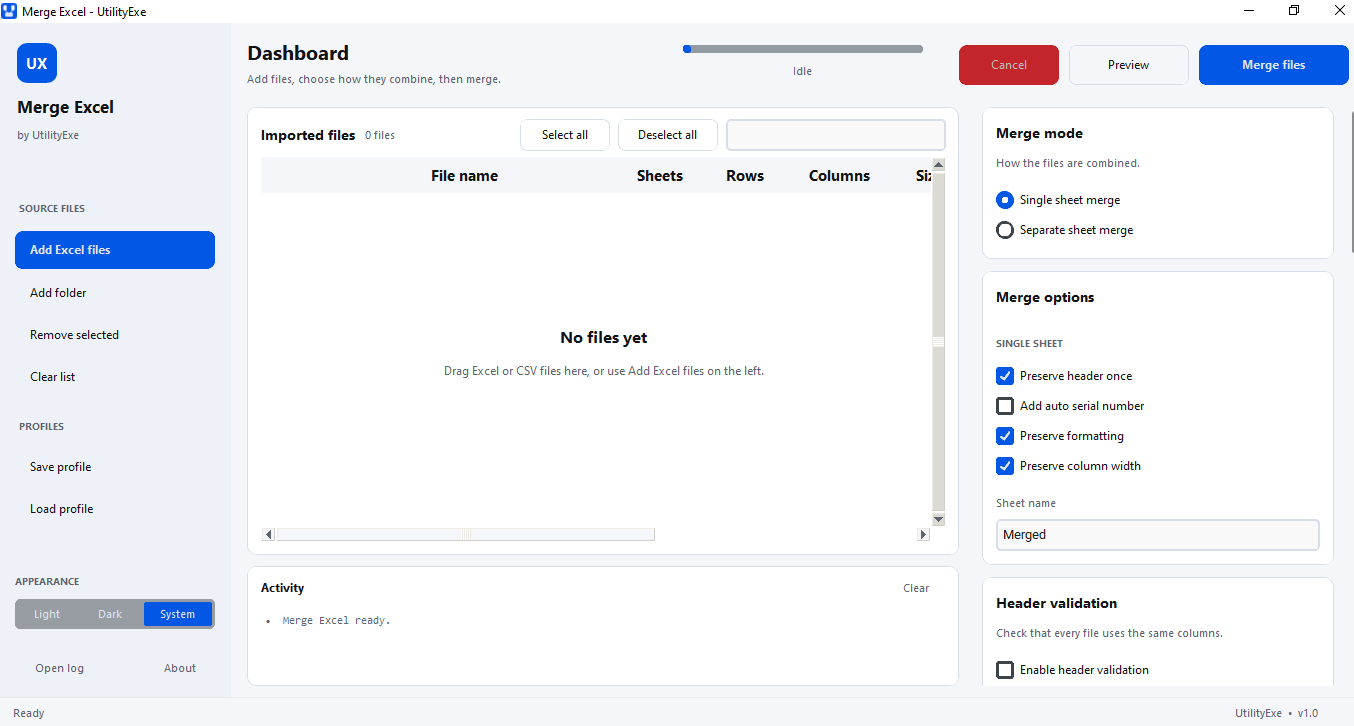
Merge Excel handles that entire pipeline in one pass. Point it at files or a whole folder, choose how the output should be shaped, preview the result, and merge.
Tested at 500,000 rows across 40 files: about 16 seconds, 176 MB of memory.
That number holds because the app does not brute-force its way through your data. Row and column counts are read by streaming rather than loading whole workbooks into memory, and large unprotected output is written through XlsxWriter in constant memory. The app handles 500+ files and 500,000+ rows on ordinary hardware.
Single sheet merge stacks every file's rows into one worksheet. The header is written once, an optional S_No serial column is added, and formatting and column widths can be carried through.
Separate sheet merge gives each source file its own worksheet, named from the file or from the original sheet name. Duplicate sheet names are auto-renamed, illegal characters are cleaned, and Excel's 31-character sheet name limit is respected. A file with several sheets has them stacked inside its own worksheet.
Every file is compared against the first one using the mode you choose: exact match, ignore case, ignore spaces, or a custom mapping where you write rules like "Cust Name = Customer Name", one per line.
The app reports missing columns, extra columns and mismatched column order. Crucially, columns are realigned by name, so matched headers stack properly instead of producing two near-identical columns side by side. If you would rather stop than merge questionable data, you can make validation failure abort the run.
Duplicates can be found by entire row, by one selected column, or by several columns at once, with the column picker populated from the headers actually detected in your files. Keep the first occurrence or the last. Whole-row comparison deliberately ignores the source-file and serial-number columns, so identical records arriving from two branch files still collapse into one.
Cleanup covers empty rows including whitespace-only ones, extra and repeated internal spaces, blank columns, and text-to-number conversion. That conversion handles 1,200, ₹500 and 45% — and only fires when every non-empty value in the column parses, so an ID column like INV-001 is left exactly as it is. Pandas artefacts like "Unnamed: 3" become "Column 4", and repeated column labels are de-duplicated.
Add a Source_File column recording the originating file for each row, and optionally a Source_Sheet column for multi-sheet workbooks. Both column names are editable, so they fit whatever naming convention your reports already use.
Preview runs the entire pipeline in memory and writes nothing at all. It reports total files, total rows, total columns, duplicate count and validation errors; shows a 200-row sample of the merged result and the full column list; and warns about problems such as exceeding the worksheet row limit. If it looks right, you start the merge straight from the preview window.
"Excel password protection" means three different things and they are not equally strong, so the app supports all three and labels them plainly.
Workbook protection blocks adding, deleting, renaming and moving sheets. Worksheet protection blocks editing cells and inserting or deleting rows and columns. A read-only recommendation asks Excel to suggest opening the file read-only. Separately, a real open password encrypts the file.
The first three are deterrents against accidental edits, not security controls — Excel's own structure and sheet passwords are trivially removable by anyone who looks up how. Use the open password, or a protected folder, when the data genuinely needs protecting. A live strength meter and match indicator are built into the password fields, passwords are hashed into the file rather than stored in clear text, and passwords are never written into a saved profile.
After each merge you get a summary covering files processed, files failed, total rows read, merged rows, duplicates removed, empty rows removed, blank columns removed, sheets written, validation errors, protection applied, processing time and output location — with tabs listing every validation issue and every failed file with its reason. The whole report exports as Excel or PDF.
If the same merge happens every month, save the settings and file list as a .json profile and load it next time, optionally re-importing the files that still exist on disk. Missing files are reported rather than failing silently.
Every file is validated before processing, and one bad file never stops a batch — it is reported and skipped. Locked files, permission errors, out-of-memory conditions, row-limit overruns and corrupt workbooks produce plain-English messages instead of stack traces. All processing runs on a background thread so the window never freezes, cancel is available at any point, and nothing is written unless the merge completes. A rotating log at logs/merge_log.txt keeps the last five 2 MB files with full merge statistics.
Workbook and worksheet protection are deterrents, not encryption. Excel's structure and sheet passwords can be removed with freely available tools. Only the open password is real encryption.
The open password requires Microsoft Excel installed on the machine, driven through COM. Without Excel the merge still completes and the summary explicitly tells you the open password was skipped rather than pretending it worked.
Protection applies to .xlsx output only. XLS and CSV have no equivalent, and the report says so instead of silently doing nothing.
XLS output depends on the unmaintained xlwt package and is capped at 65,535 rows and 256 columns by the format itself. XLSX is the better choice in every case.
A single worksheet holds 1,048,576 rows. Past that, the app tells you to switch to separate sheets or CSV rather than truncating your data.
Source files that carry an open password cannot be read. Remove the password in Excel first.
Drag and drop needs the optional tkinterdnd2 package. The app runs perfectly well without it — use Add Excel files instead.
There is no scheduling, no command-line interface and no macOS or Linux build. This is a Windows 10 and 11 desktop application.
Merge Excel is a portable executable. There is no installer, no account, no telemetry and no internet connection required. Your spreadsheets never leave your computer — which matters when the files contain customer records, payroll or anything else you would not paste into a web tool.
For other spreadsheet and document work, see Image Converter Pro and PDF Page Extractor.
Other utilities people use alongside Merge Excel.
Bulk QR codes from Excel and CSV, without uploading your data anywhere
Fast, Simple & Powerful Bulk File Renaming.
Turn Excel spreadsheets into barcode images in seconds